
Disclosure: WorkWise is reader-supported. When you buy through links on our site, we may earn an affiliate commission at no extra cost to you. Learn more.
At-a-glance recommendations
A fast comparison list for the products covered in this guide.
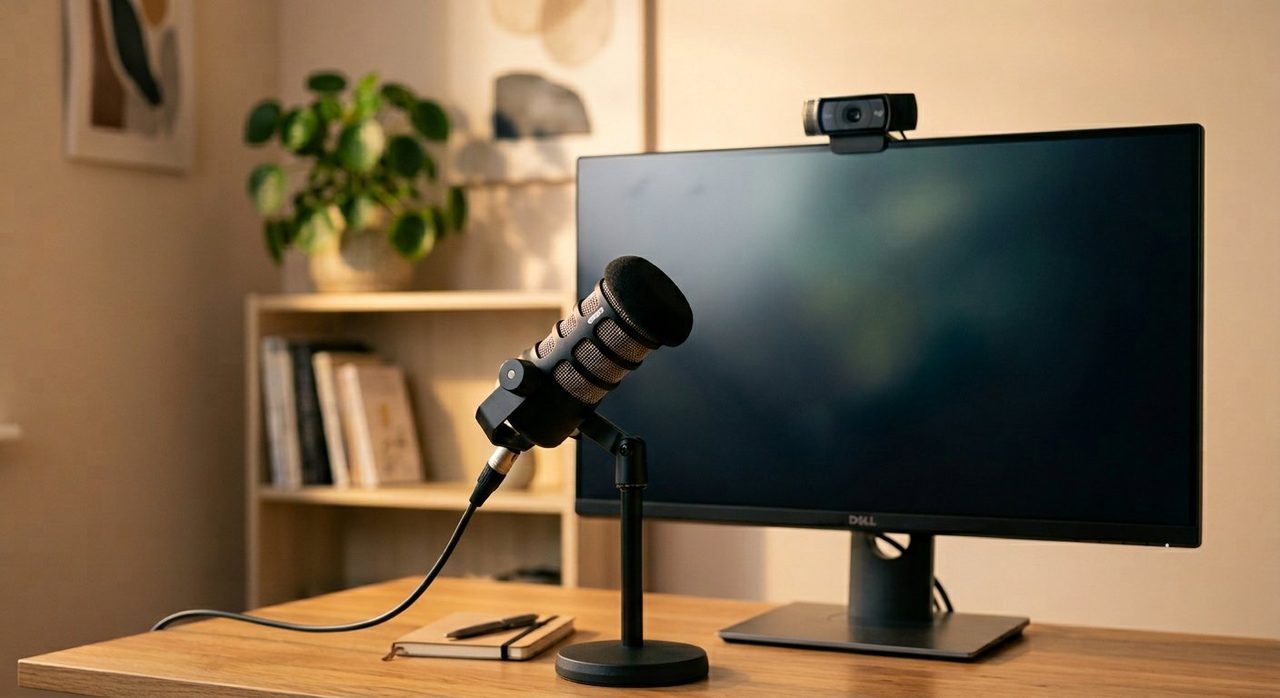
Dell P2422H 24-inch IPS Monitor
Reliable, color-accurate, USB hub built in. Pairs well as a secondary next to a larger primary.
LG 27UP650-W 27" 4K
If your primary is 4K, matching the second one prevents the scaling-mismatch issue. This LG is great value for a 4K secondary.
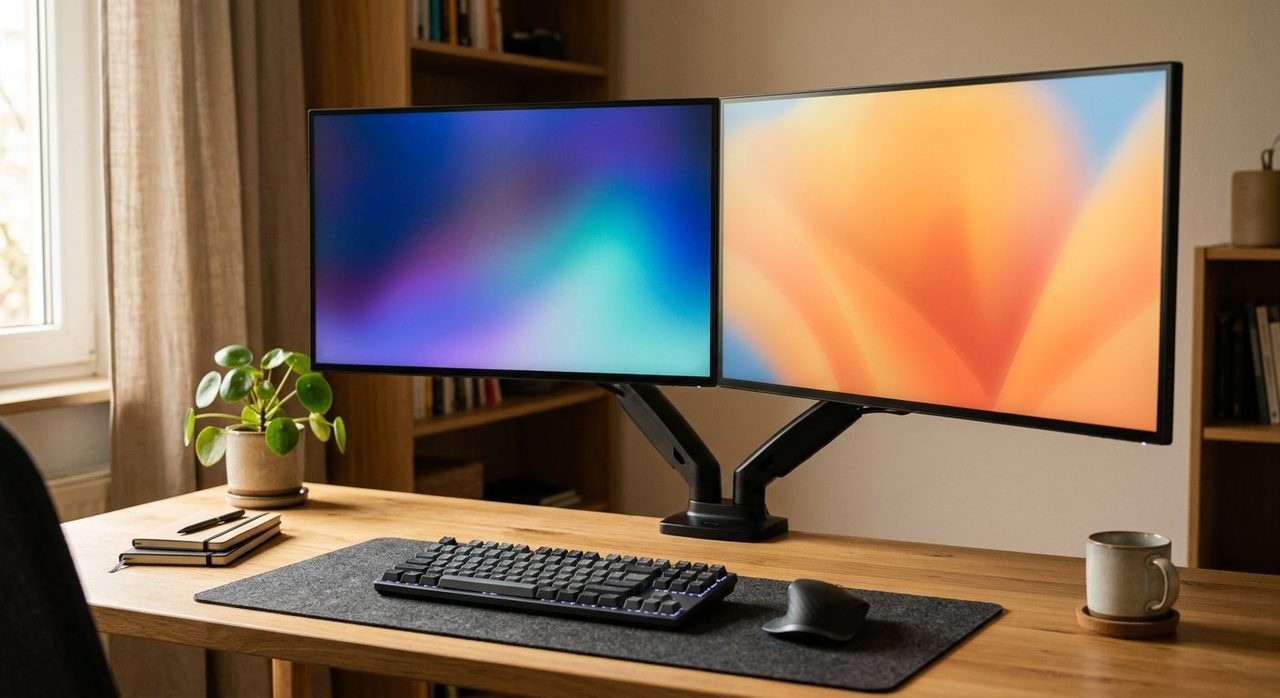
HUANUO Dual Monitor Arm
Cheap, sturdy, full articulation including rotation. The accessory that makes dual-monitor setups actually work ergonomically.
"You need a second monitor" is one of the most common pieces of WFH advice. Sometimes it's right. Sometimes it adds clutter, neck strain, and another thing to clean — without actually making you more productive. Here's how to decide for your specific work, and what to do if you decide to add one.
The productivity research
Most-cited studies (Jon Peddie Research, NEC) find productivity gains of 20–50% for users adding a second monitor — but those studies are funded by monitor manufacturers, so take them with salt. Independent research (University of Utah, Microsoft) is more modest: 9–18% for tasks involving comparison, reference, or multi-window workflows. Negligible for tasks that are single-focus.
When a second monitor genuinely helps
- Coding while referencing documentation
- Writing while researching sources
- Spreadsheet work with multiple sheets visible
- Video editing (timeline + preview)
- Design work (canvas + tool panels)
- Trading or monitoring (charts + news feed)
- Pair programming, screen sharing while working
When it doesn't help (or hurts)
- Single-task writing or reading
- Roles where you're mostly on video calls
- Small desk where the second monitor crowds your peripheral vision
- If you're already prone to distraction — more screens = more places for Slack, news, social to live
The "one big monitor" alternative
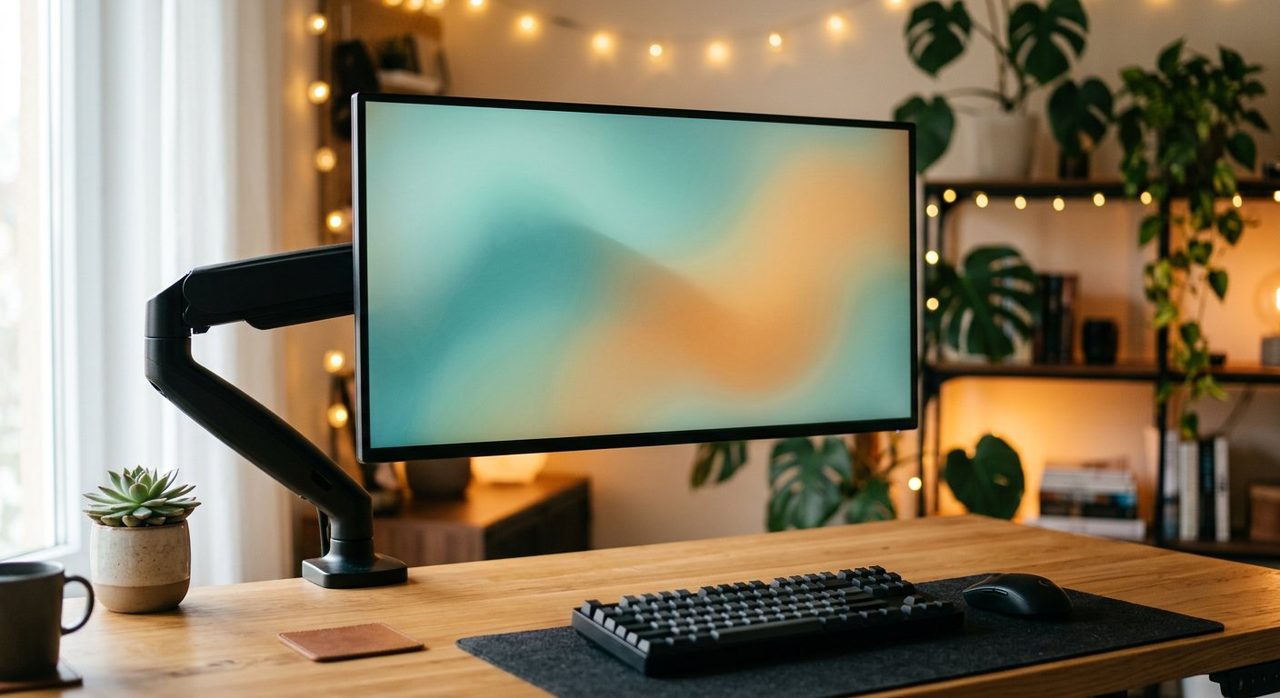
Increasingly, the best answer isn't a second monitor at all — it's one really large one. A 32" 4K or 34" ultrawide gives you the same total screen area as two 24" monitors, but:
- No bezel in the middle interrupting your eye line
- Less neck rotation
- You can split it into virtual windows using built-in OS tools (macOS Stage Manager, Windows FancyZones)
- Cleaner desk
For most knowledge workers, this is now our default recommendation. See our monitor guide for specific picks.
If you go dual-monitor: setup mistakes to avoid
1. Different heights
Both screens should have their top edges at the same height. Different heights cause constant micro-adjustments of head and eyes. Use monitor arms; the included stands rarely line up.
2. The "primary in front, secondary off-center" trap
Many setups put the primary monitor centered and the secondary off to one side. That works only if the secondary is a true secondary (reference, chat, email). If you use both equally, place them so the seam is in front of you and both are equally accessible.
3. Mismatched brightness
Older monitors lose brightness as their backlights age. If one is significantly brighter than the other, your eyes constantly adapt. Calibrate both to the same brightness.
4. Different scaling
If your monitors have different resolutions or sizes, set OS scaling so text looks the same size on both. Otherwise switching between them causes constant eye-strain.
The vertical secondary monitor
An overlooked configuration: keep your primary monitor in standard landscape, and add a smaller monitor rotated 90° (portrait) on one side. Great for:
- Long-form code editors
- Documentation, PDFs, articles you're referencing
- A persistent Slack/email column
- Social media monitoring for community managers
Most monitor arms support rotation; just verify before buying.
Our picks for a second monitor
Dell P2422H 24-inch IPS Monitor
Reliable, color-accurate, USB hub built in. Pairs well as a secondary next to a larger primary.
LG 27UP650-W 27" 4K
If your primary is 4K, matching the second one prevents the scaling-mismatch issue. This LG is great value for a 4K secondary.
HUANUO Dual Monitor Arm
Cheap, sturdy, full articulation including rotation. The accessory that makes dual-monitor setups actually work ergonomically.
The decision tree
- Do you regularly compare two windows side-by-side? → Yes: continue. No: don't add a second monitor.
- Could one larger monitor (32"+) handle this? → Probably: get the big monitor instead. Less clutter, less neck strain.
- Do you specifically benefit from a vertical orientation? → Yes: add a vertical secondary. No: matched horizontal pair, on arms, at same height.
- Do you have desk space? → No: see our small-space guide — sometimes one big monitor is the only option.
Final word
A second monitor is a real productivity tool for the right work. It's also marketing-hyped beyond its actual benefit for many users. Try the "one screen for a week" test before spending money, and if you do upgrade — strongly consider one large monitor instead of two medium ones. Most home offices look better and feel less cluttered that way.
Frequently asked questions
How much does a second monitor actually improve productivity?
Research varies, but most studies find a 9–50% productivity gain for tasks that involve comparing or referencing information. The biggest gains are for spreadsheet work, code/documentation work, and writing while researching. Pure single-task work (writing one document, reading one PDF) gains little.
Should the second monitor match the first?
Ideally yes — matching size, resolution, and brightness eliminates the constant visual recalibration when you switch between them. But matching isn't critical; consistent height and orientation matters more.
Is one large monitor better than two medium ones?
For most office tasks, yes. A single 32–34" ultrawide or 4K monitor gives you the same screen area with no bezel down the middle. The eye-jump between two monitors causes more fatigue than people realize.
Can I use a TV as a second monitor?
Technically yes, but rarely well. TVs have lower pixel density (text looks fuzzy), slower input response, and color calibration tuned for video, not work. A real monitor at the same price will be much better.
Vertical second monitor — useful or gimmick?
Genuinely useful for specific work: long-form reading, code, social media monitoring, terminal output, long-form writing. If you do any of these, a vertical secondary is one of the best 'aha' upgrades.
Spotted a mistake or want to suggest a product we should test? Get in touch — we read every message.